okuzeka / Chrome
OKUZEKA • CHROME EXTENSION

An article you care about.
New words to make your own.

From news and blogs to articles and documentation: discover a word’s meaning without leaving your reading. Save useful words to your cards and review them later.

Desktop Chrome · Okuzeka account required · Lookups use your account quota
Okuzeka / Web Reading Assistant
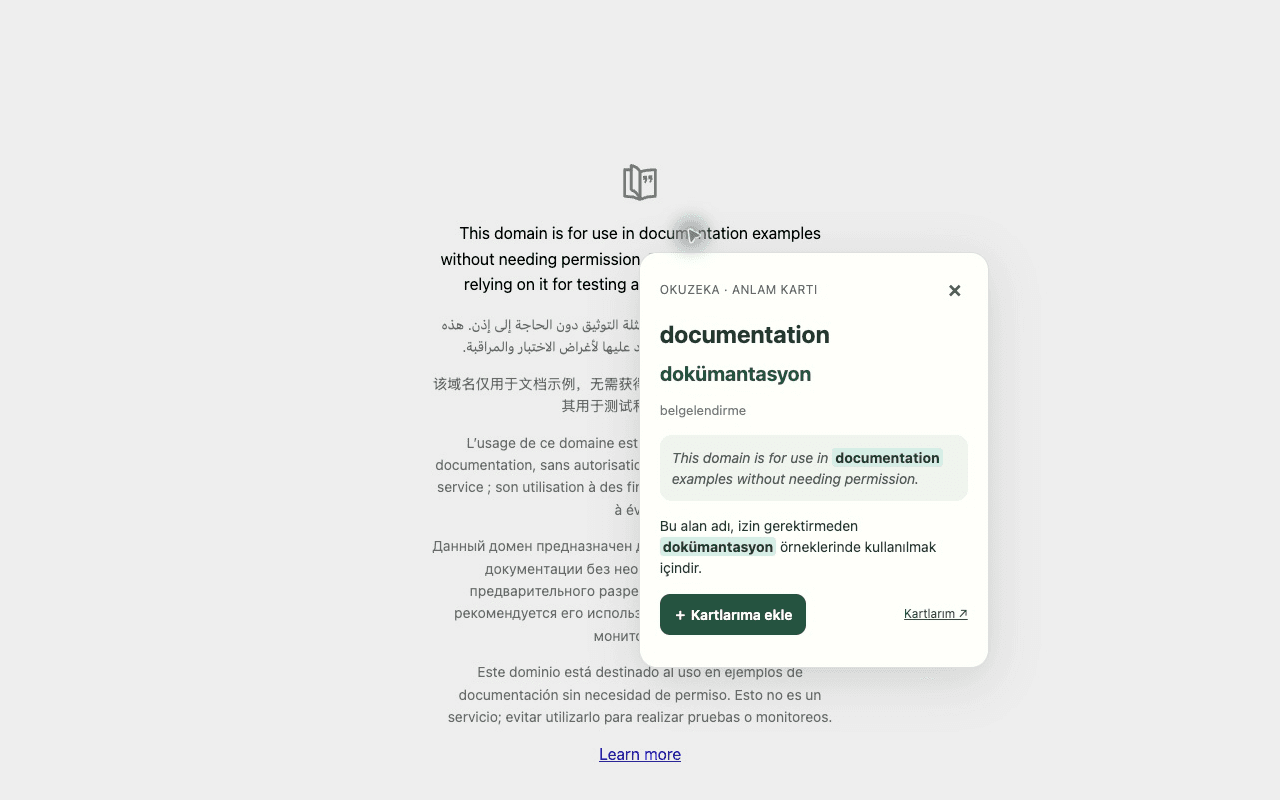
Actual extension: documentation, its Turkish meaning, highlights in both sentences and the Add to my cards button
Actual extension screenshot · The selected word and its translation are highlighted together.
GETTING STARTED

Ready to read in four steps.

  1. 01

    Install the extension

    Choose Add to Chrome in the Chrome Web Store. Pin Okuzeka to the toolbar from Chrome’s extensions menu.

  2. 02

    Sign in to your account

    Sign in at okuzeka.com in the same Chrome profile. Saved words go to that account’s My cards section.

  3. 03

    Enable it on the page

    Click the Okuzeka toolbar icon on the page you are reading. Choose a translation language under “Anlamları göster”, then close the popup.

  4. 04

    Click once to understand

    Click a word once in ordinary page text. The meaning card opens with the word and its corresponding translation highlighted.

Sign in to Okuzeka →
TRY IT WHILE READING

Three reading moments. Three ways to learn.

These English → Turkish examples are illustrative; actual answers depend on the sentence and your selected translation language.

01 / NEWS

One word, the right context

The report offers a fresh assessment of the situation.
Rapor, duruma ilişkin yeni bir değerlendirme sunuyor.

Read the sentence first, then click the unfamiliar word once. Use the sentence translation to check your understanding of the story.

02 / ARTICLES

Learn a phrase as a whole

Small habits can make a difference over time.
Küçük alışkanlıklar zamanla fark yaratabilir.

Drag to select a short phrase, then click “Anlamını göster” (Show meaning). Looking at a phrase together can be more useful than translating each word separately.

03 / DOCUMENTATION

Save terms you will meet again

Read the documentation before you begin.
Başlamadan önce dokümantasyonu oku.

Click “+ Kartlarıma ekle” (Add to my cards). Wait for “Kartlarına eklendi” (Added), then follow Kartlarım to check your account.

A SMALL READING HABIT

Collect words you will actually use.

Start with a short article you enjoy. Find the paragraph’s main idea first, then look up words that block understanding. Save 3–5 words you want to meet again.

Open my cards →
  1. 01Read and guess from context
  2. 02Click once to check the meaning
  3. 03Save the word to your account
  4. 04Recall it tomorrow; write your own sentence

Good to know

I click a word but no card opens.

Open and close the Okuzeka toolbar popup on that page first. Click ordinary text, rather than a link, button or input field. Enable it again after a reload. Check that you are signed in and have remaining lookup quota.

Do I need to enable it every time?

On a site you visit often, choose “Bu sitede her zaman çalıştır” (Always run on this site). Grant Chrome’s requested site permission to enable it automatically on later visits to that site.

Can I use it on my phone?

This extension is for desktop Chrome. Mobile Chrome does not support extensions. Use the Okuzeka website or mobile app on your phone; the extension’s meaning cards on other websites are not available in mobile Chrome.

Does it work on every page and PDF?

It works with ordinary webpage text. Chrome internal pages, the Web Store, the built-in PDF viewer, text inside images and some embedded content are unsupported. Open your PDFs in the Okuzeka reader instead.

Is it free? What data is sent?

The extension is free to install; lookups use your account’s existing quota. A lookup sends the selected text, nearby context, language preferences, page title and URL path to Okuzeka. OpenAI generates the meaning and translation. AI can make mistakes; check the result against the sentence.
Extension privacy and data use →

TRY IT ON YOUR NEXT ARTICLE

Keep learning wherever you read.

Open in the Chrome Web Store ↗